




How to set up audio alerts on a computer?
 Jan 20, 2026|
 Hey there! As an audio supplier, I get asked a lot about setting up audio alerts on a computer. It's a pretty handy thing to have, whether you're a gamer waiting for that crucial in - game notification, a professional monitoring audio levels, or just someone who wants to be alerted when a certain event happens. In this blog, I'll walk you through the steps to set up audio alerts on your computer, and I'll also throw in some of our top - notch audio products that can enhance the whole experience.

Why Set Up Audio Alerts?
First off, let's talk about why you'd want audio alerts. For starters, visual alerts can be easily missed, especially if you're multi - tasking. You might be working on a spreadsheet, and a new email alert pops up on the corner of your screen, but you're so focused on your numbers that you don't even notice it. Audio alerts, on the other hand, are hard to ignore. They cut through the noise (literally) and get your attention right away.
Another reason is safety. If you're monitoring audio levels in a professional setting, like a recording studio or a live event, an audio alert can let you know if the levels are getting too high or too low. This can prevent damage to your equipment or ensure a great sound quality for your audience.
Step 1: Choose Your Audio Alert Source
The first step in setting up audio alerts is to decide what you want to be alerted about. It could be anything from an email notification to a system event. Most operating systems come with built - in settings for common alerts.
On Windows, you can go to the "Settings" app, then click on "System" and "Notifications & actions". Here, you can customize which apps can send you notifications and whether you want them to be silent, display a banner, or play a sound. You can also choose the sound you want to use for each app.
For macOS users, head over to the "System Preferences", then click on "Notifications". Similar to Windows, you can select the apps you want to receive notifications from and set the alert style. You can even choose different sounds for different apps.
If you want to set up custom alerts for specific events, you might need to use third - party software. There are plenty of apps out there that can help you do this. For example, if you want to be alerted when a certain website changes its content, you can use a web monitoring tool.
Step 2: Select the Right Audio File
Once you've decided what to be alerted about, it's time to choose the audio file for your alert. You can use the default sounds that come with your operating system, but if you want something more personalized, you can use your own audio files.
Most operating systems support common audio formats like MP3, WAV, and AIFF. You can find free sound effects online, or you can create your own using audio editing software. Just make sure the file is in the right format and is not too long. You don't want a 5 - minute audio clip for a simple alert!
Step 3: Configure the Audio Settings
Now that you have your audio source and file ready, it's time to configure the audio settings. Make sure your speakers or headphones are properly connected to your computer. Check the volume level and make sure it's loud enough to be heard, but not so loud that it'll scare you half to death.
On Windows, you can right - click on the speaker icon in the taskbar and select "Open Sound settings". Here, you can adjust the volume, choose the output device, and test the audio.
On macOS, click on the speaker icon in the menu bar and use the slider to adjust the volume. You can also click on "Sound Preferences" to configure more advanced settings.
Our Top Audio Products for Enhanced Alert Experience
As an audio supplier, we've got some great products that can take your audio alert setup to the next level.
U8903B Agilent Performance Audio Spectrum Analyzer
The U8903B Agilent Performance Audio Spectrum Analyzer is a beast when it comes to audio analysis. It can accurately measure audio signals, allowing you to monitor and set up alerts based on specific frequencies and levels. This is perfect for professional audio engineers who need to keep an eye on the audio quality in real - time.
APX515B Audio Precision Audio Analyzer, Analog and Digital, 2 Channel
The APX515B Audio Precision Audio Analyzer is another great option. With its 2 - channel support, it can handle both analog and digital audio signals. You can use it to set up alerts for different audio sources, ensuring that you never miss an important event.
ATS - 1 Audio Precision Audio Analyzer
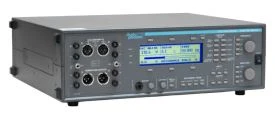
The ATS - 1 Audio Precision Audio Analyzer is a compact and powerful audio analyzer. It's easy to use and can provide accurate audio measurements. You can use it to set up simple or complex audio alerts, depending on your needs.
Step 4: Test Your Audio Alert
After you've set everything up, it's important to test your audio alert. Trigger the event that you've set up the alert for and see if the audio plays correctly. If there are any issues, go back and check your settings. Make sure the audio file is properly selected, the volume is set correctly, and the output device is working.
Troubleshooting
If you're having trouble with your audio alerts, here are some common issues and solutions:
- No sound: Check if your speakers or headphones are properly connected. Make sure the volume is turned up and not muted. Also, check if the audio file is in the correct format and is not corrupted.
- Wrong sound: If the wrong audio file is playing, go back to the settings and double - check which file you've selected.
- Audio is too quiet or too loud: Adjust the volume settings in your operating system or use the volume controls on your speakers or headphones.
Conclusion
Setting up audio alerts on a computer is a relatively simple process. By following the steps outlined in this blog, you can customize your alerts to suit your needs. And if you want to take your audio monitoring to the next level, don't forget to check out our top - quality audio products.
If you're interested in purchasing any of our audio products or have any questions about setting up audio alerts, feel free to reach out for a friendly chat and we can discuss your specific requirements.
References
- Windows 10 Help & Learning Center
- Mac Support from Apple
- Manufacturers' documentation for U8903B Agilent Performance Audio Spectrum Analyzer, APX515B Audio Precision Audio Analyzer, and ATS - 1 Audio Precision Audio Analyzer